
How do I use AI to help me design events?
What is Thrillify AI?
Thrillify AI helps you plan engaging events faster by suggesting challenges, proposing schedules, and tailoring ideas to your audience, location, and themes. You can use AI to generate events from scratch or enhance existing events with new ideas.
Step 1: Start creating a new event
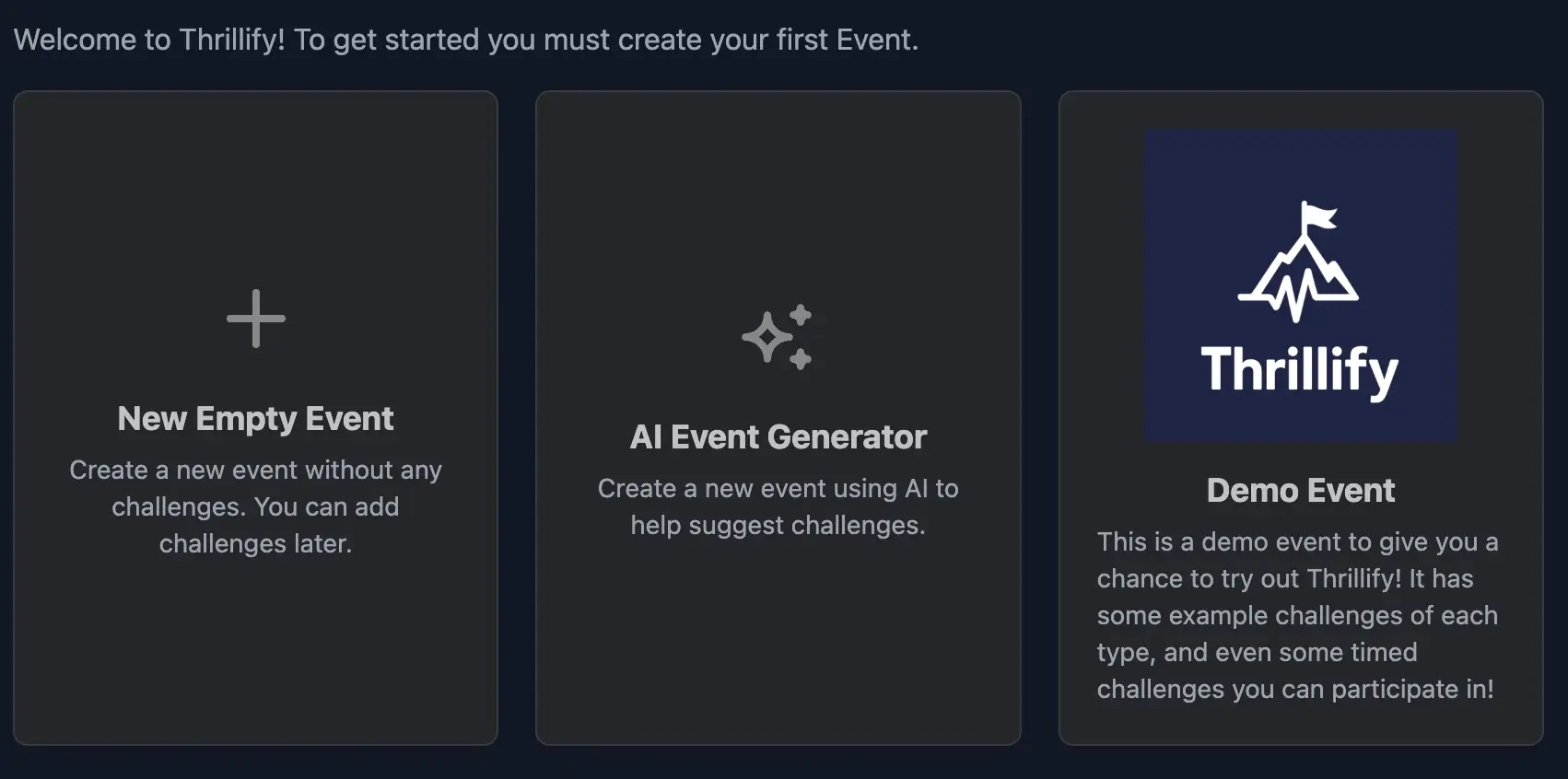
From the Events tab click Create New Event, choose AI Event Generator to create a new event using AI, or select New Empty Event and add AI suggestions later.
Step 2: Enable Thrillify AI
If AI isn’t already enabled for your organization, you’ll be prompted to turn it on. Toggle Enable AI and click Save. This will allow AI to provide suggestions across your organization. AI is available on all plans, but you must enable it first.

INFO
Enabling AI will allow you to use AI features across all events in your organization. You can disable it at any time. You can still design events manually without AI, but enabling it unlocks powerful suggestions and automation.
Step 3: Create a new event
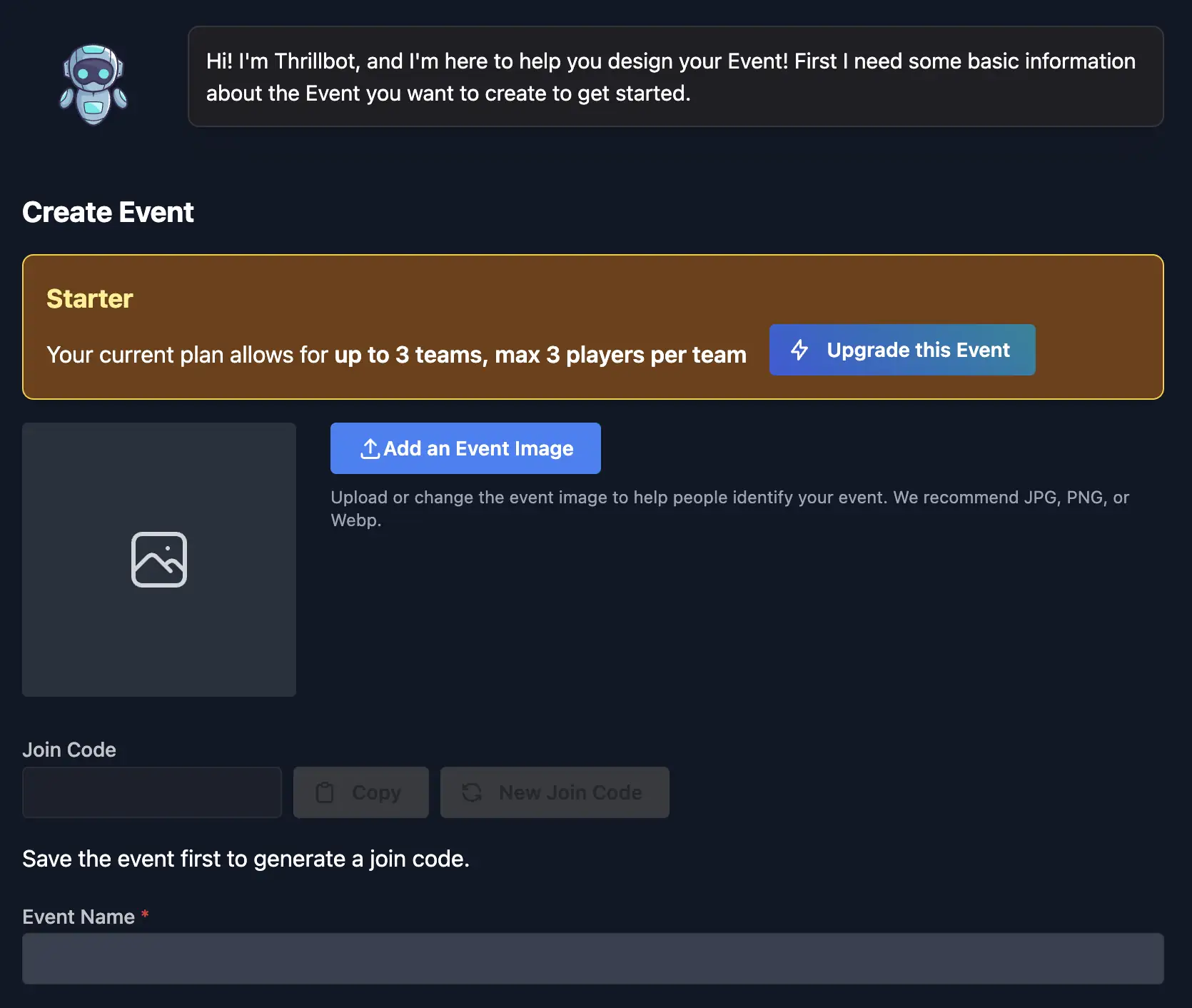
Provide your Event Name and other basic details. Click Save to create the event and get started with AI suggestions.
Step 4: Provide details about your event
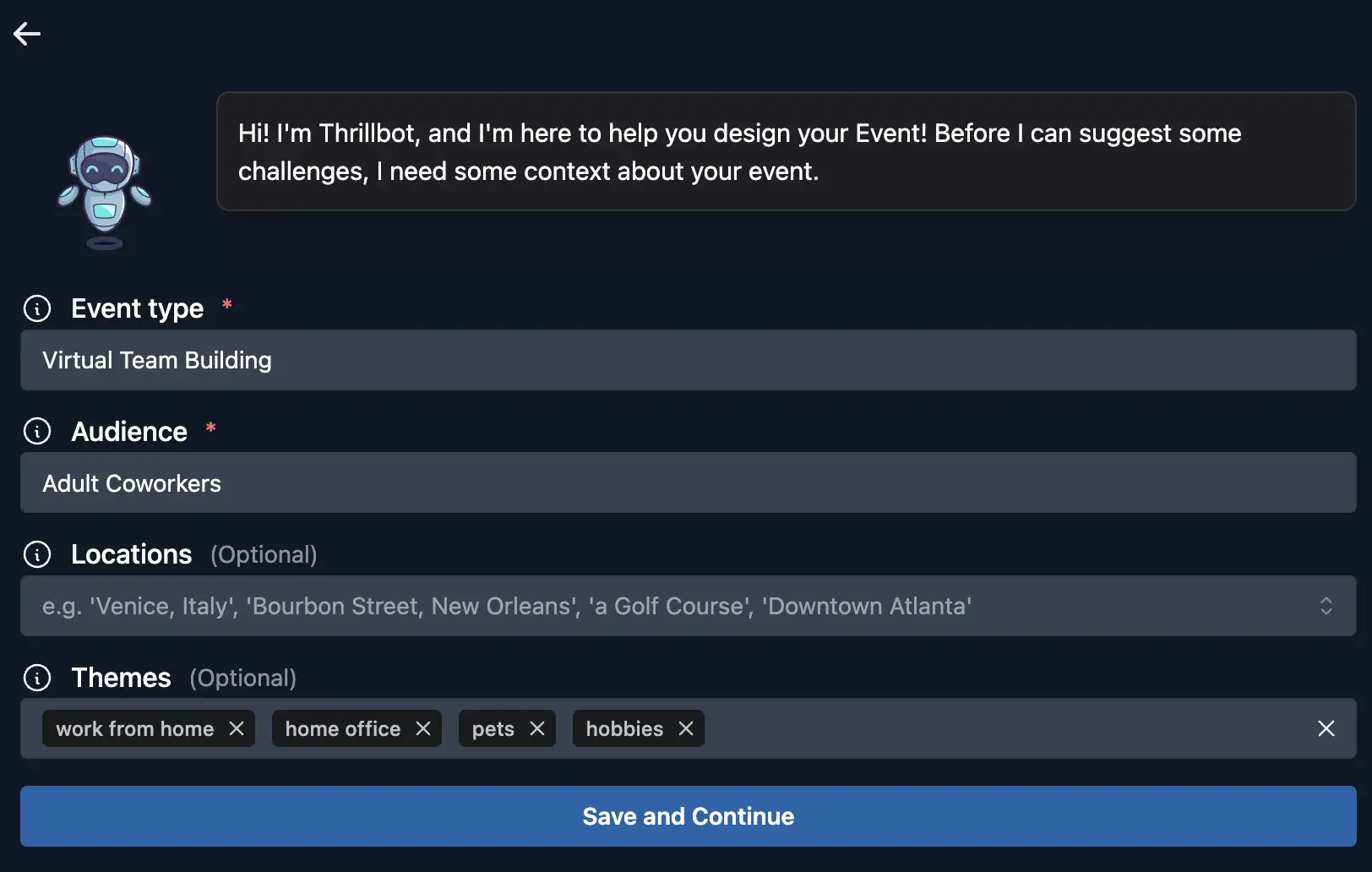
Fill in the Event Type, Audience, and optional Locations and Themes. The more context you provide, the better the suggestions will match your event style.
- Event Type – Helps set the tone and style of your event. Examples include Virtual Team Building, Birthday Party, or Scavenger Hunt.
- Audience – Describe who will be participating, such as adults, families, friends, or corporate teams. Including age range or group type helps tailor suggestions.
- Locations – Add specific venues or general areas where the event will be held. Only include locations that matter to your event, as AI will use them to generate location-specific challenges.
- Themes – Choose topics or activities you want woven into your event, such as sports, arcade games, bowling, sightseeing, or food.
Step 5: Pick themes, locations, and challenge types
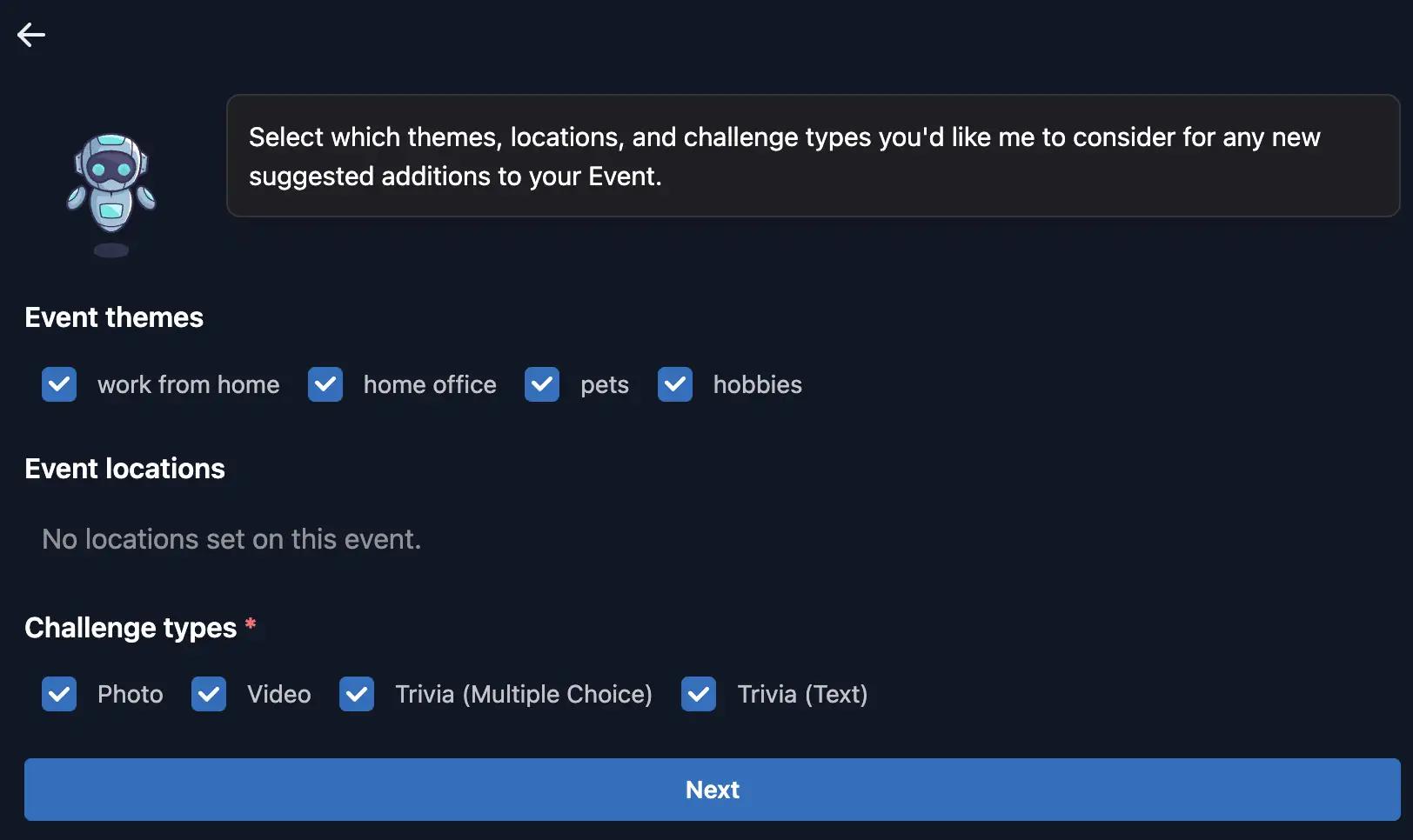
Select which Event Themes, Event Locations, and Challenge Types you’d like AI to consider. You can mix and match for variety.
Step 6: Choose what suggestions you want
Choose how many challenge suggestions to generate, whether you want AI to propose a schedule, and your preferred pacing and frequency.

Step 7: Review challenge suggestions
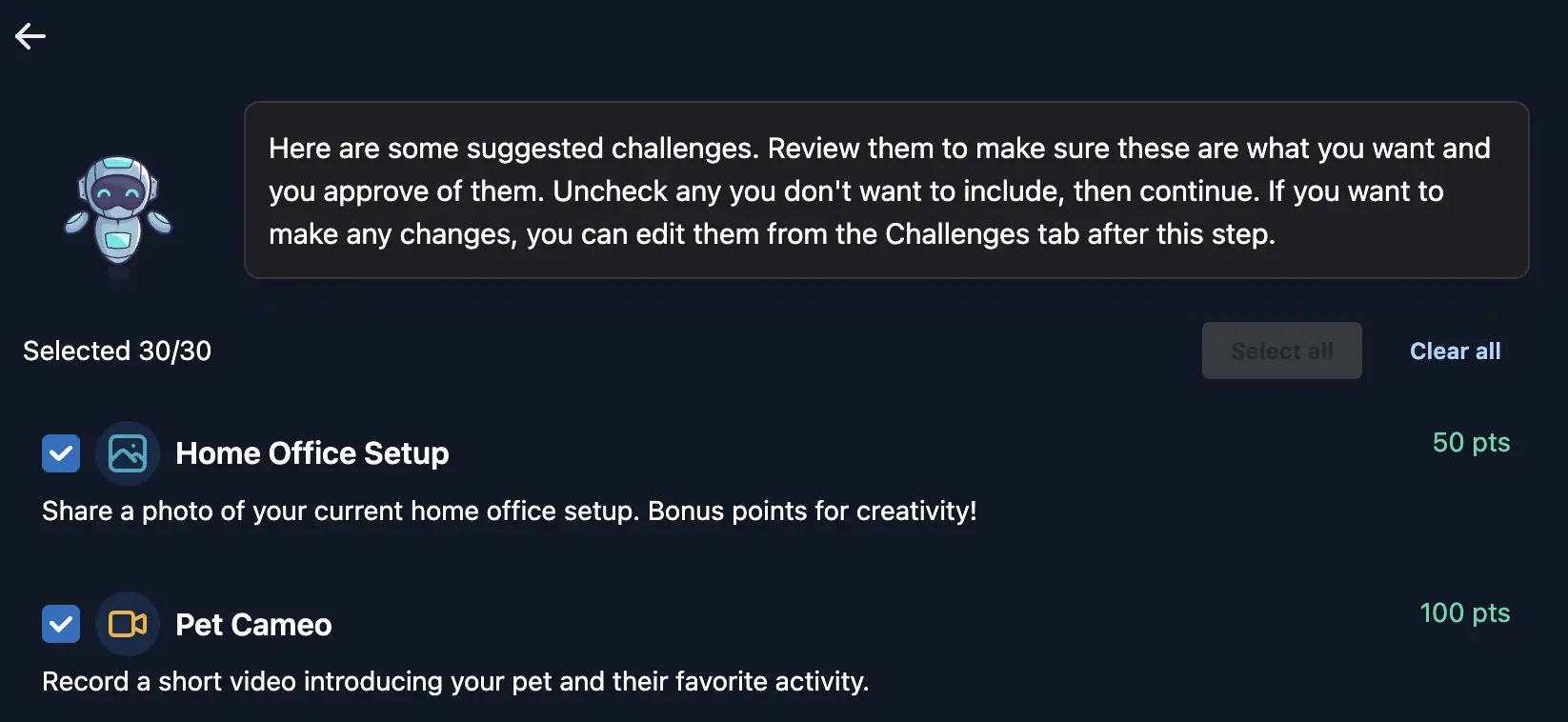
Review the list of suggested challenges carefully, uncheck any you don’t want or that violate the Acceptable Use Policy, and keep the ones you like. You can edit these later from the Challenges tab.
Step 8: Review schedule suggestions (optional)
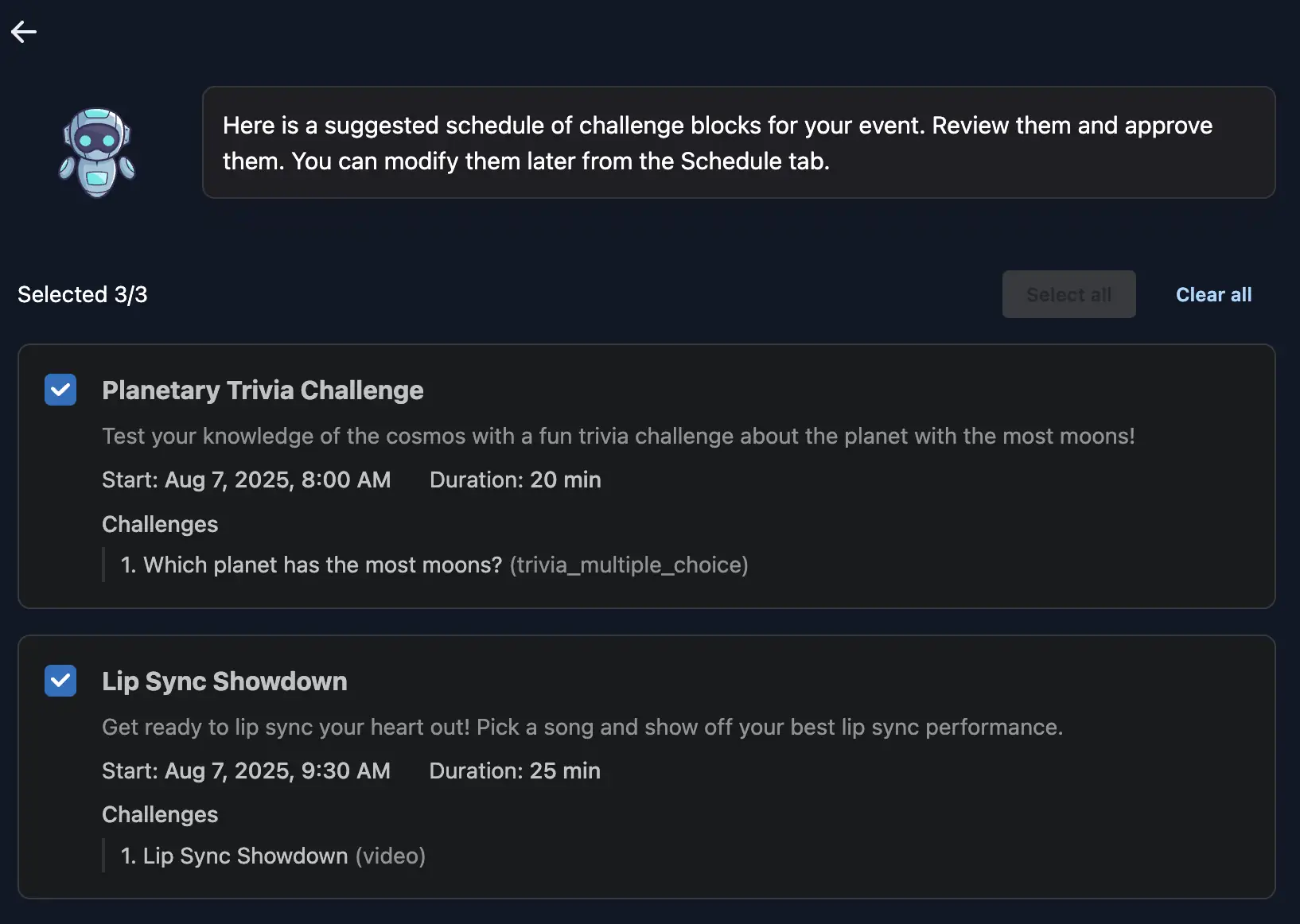
If you chose to have AI create a schedule, it will suggest timed challenge blocks for your event. You can accept them as-is or adjust them later in the Schedule tab. The AI will select challenges from your event’s entire pool of available options, including any you may have just added.
Quick Tips
- Be specific: The more details you give AI, the better the suggestions.
- Mix challenge types: Include photo, video, and trivia for variety.
- Edit after generation: All AI suggestions can be modified once added.
- Use themes and locations: Helps AI tailor challenges to your setting.