How do I delete player comments?
If a player leaves a comment that breaks event rules, was posted by mistake, or simply needs to be removed, Thrillify allows Event admins to delete comments directly from the Backstage Dashboard.
TIP
Players can edit or delete their own comments at any time through the app by long-pressing (tap and hold) on their comment.
1. Open the Comments on a Submission
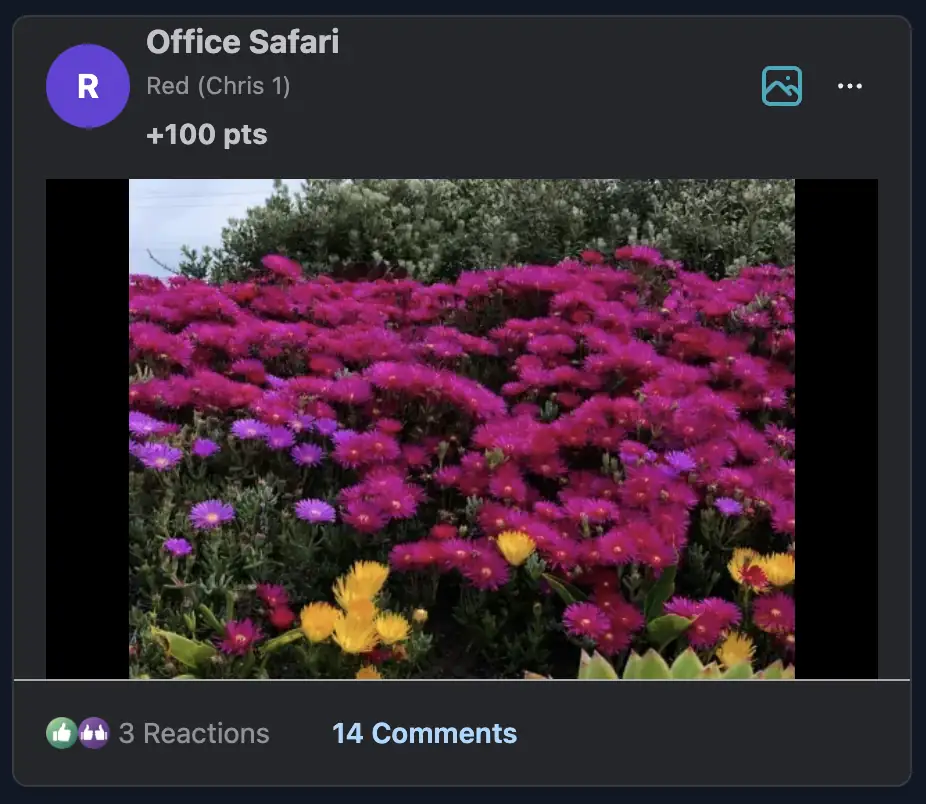
From the Submissions feed, locate the entry that contains the comment you want to delete.
Click the Comments count to open the full comment list.
2. Locate the Comment and Click the Trash Icon
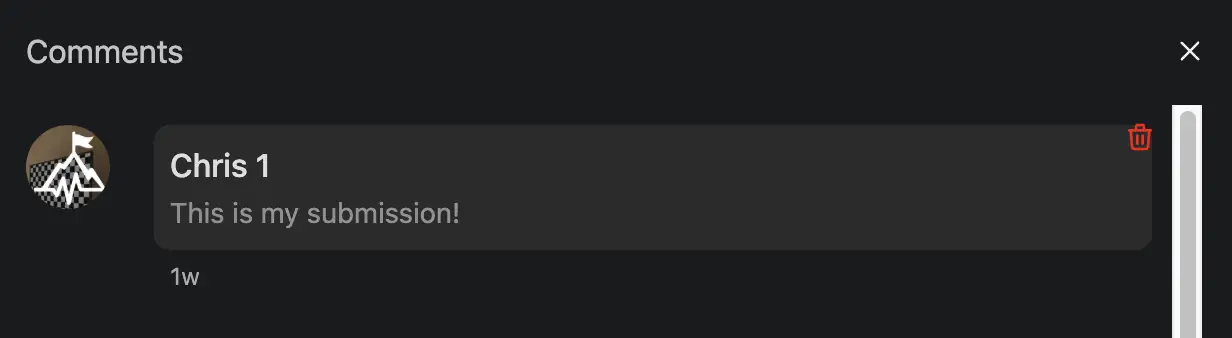
Inside the comments popup, hover over or tap a comment.
If it is eligible for deletion, a trash can icon will appear.
Click the trash icon to begin deletion.
3. Confirm Deletion
A confirmation prompt will appear to make sure you want to remove the comment.
Once confirmed, the comment will be permanently deleted and removed from the thread for all players.
Notes
- Deleted comments cannot be recovered.
- Comment deletion does not affect any points earned from the submission itself — it only removes the text response.
- Players can edit or delete their own comments at any time through the app by long-pressing (tap and hold) on their comment.