
How do I create a survey challenge?
Creating a survey challenge
Survey challenges are a simple way to gather quick feedback from participants during a team event. Everyone who responds earns points just for taking part. Use surveys to capture session ratings, collect suggestions, run quick polls, or ask open-ended questions for facilitator notes.
To create a survey, open the Challenges tab for your event in the Backstage portal and choose Survey as the challenge type.
Survey question types
Pick the question format that matches the info you want to collect. For most team-building events you can think in two buckets: structured choices for easy counting, and open text for ideas and suggestions.
Structured options
- Single Choice — Participants pick one option. Good for questions like “Which breakout did you attend?” or “Which activity did you enjoy most?”
- Multiple Choice — Allows selecting multiple options. Use this for “Which team tasks did your group complete?”
- Rating (1–5 or 1–10) — Quick satisfaction or quality rating. Great for “Rate the facilitator’s energy” or “How useful was this session?”
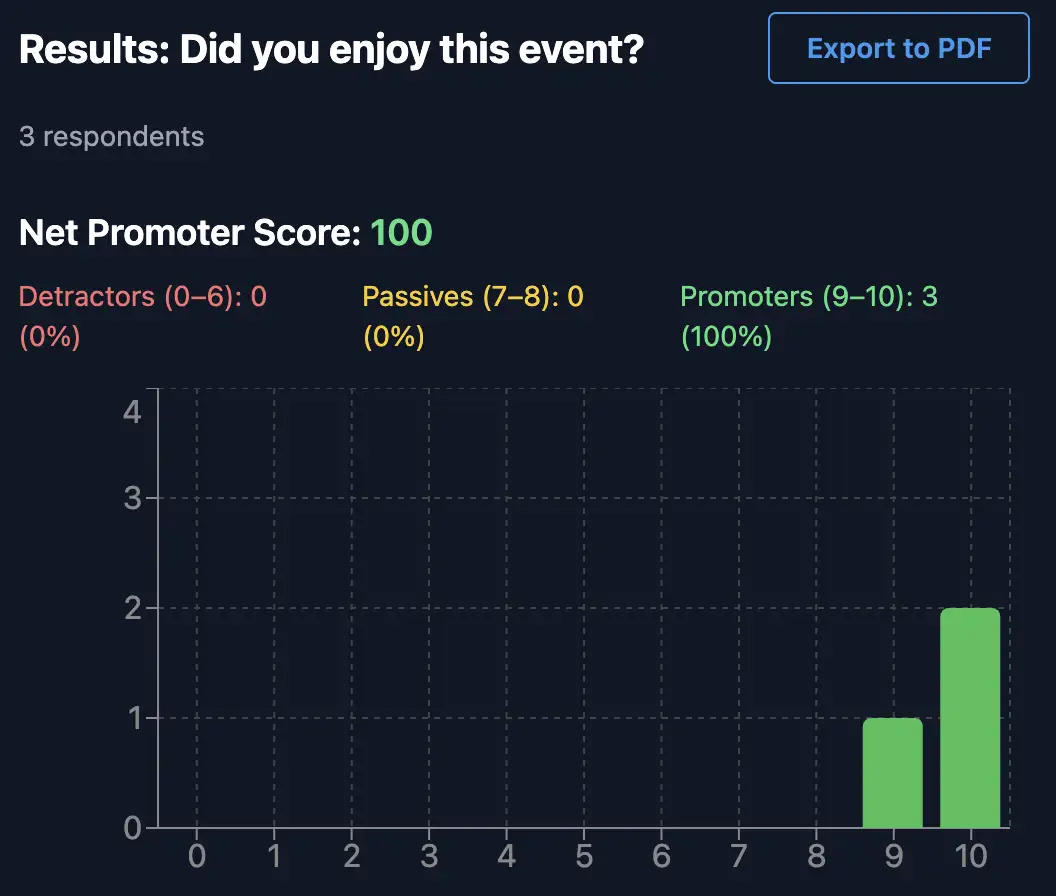
- Net Promoter Score (NPS) — A 0–10 recommendation question, useful to measure overall satisfaction: “How likely are you to recommend this event to a colleague?”
- Ranking — Participants order items by preference. Handy for “Rank these icebreakers from best to worst.”
Open text
- Short Text — Single-line answers for short suggestions like “One tip for the next session”.
- Long Text — Multi-line responses for fuller feedback: “Describe what worked well and what could improve.”
Result visibility modes
You can control whether participants see survey results after they submit their answers. This setting is available when creating or editing the challenge.
- Results visible (default) — After submitting, participants can view aggregated live results from the challenge details screen in the app. Results update in real time as more people respond.
- Results hidden — Participants cannot view results. Only event admins can see results in the Backstage web portal.
These settings let you choose whether participants see the results immediately or keep them private for facilitators.
TIP
These same result visibility modes are also available for Trivia Multiple Choice and Trivia Text challenge types, defaulting to results visible.
Live results and visualizations
Survey results display live in the mobile app and in the Backstage portal. Charts update as responses come in so they can be monitored in real time during your event.
Visualizations by question type:
Single Choice — Simple bar chart showing counts for each option.
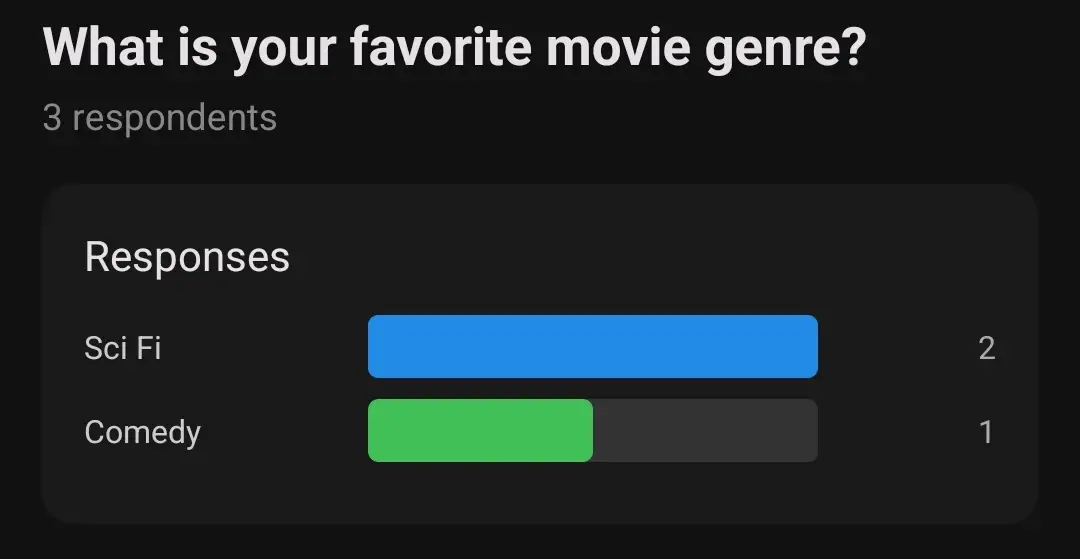
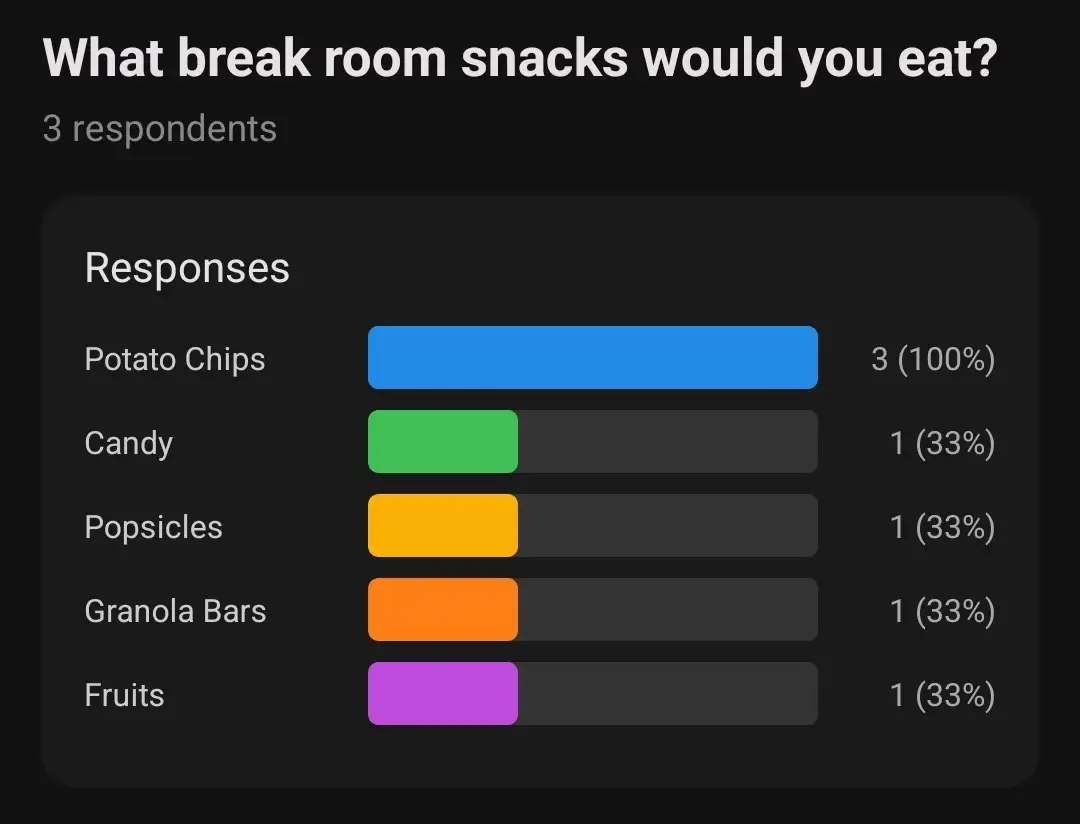
Multiple Choice — Bar chart showing how often each option was picked.
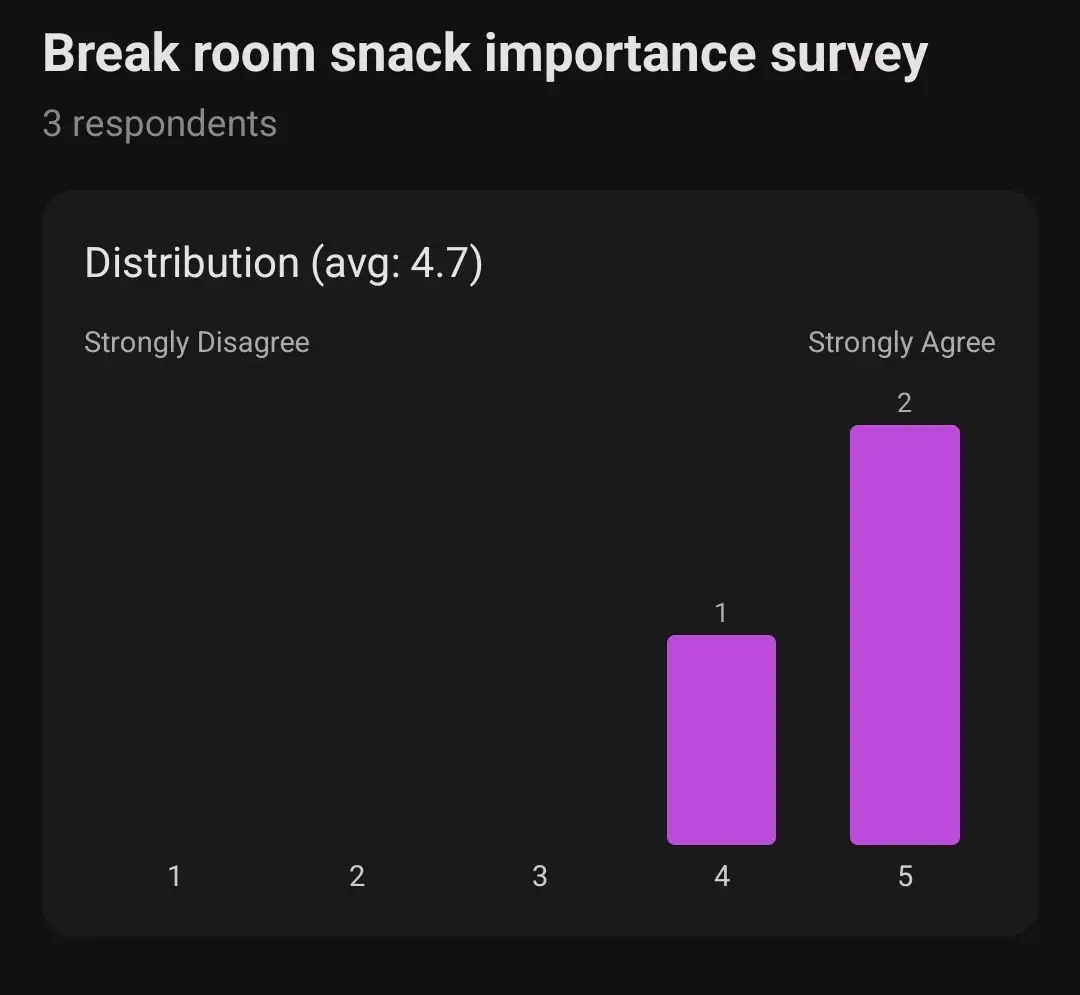
Rating — Distribution view so you can see whether responses are mostly high, low, or mixed rather than relying on a single average.
NPS — A quick gauge separating promoters, passives, and detractors.
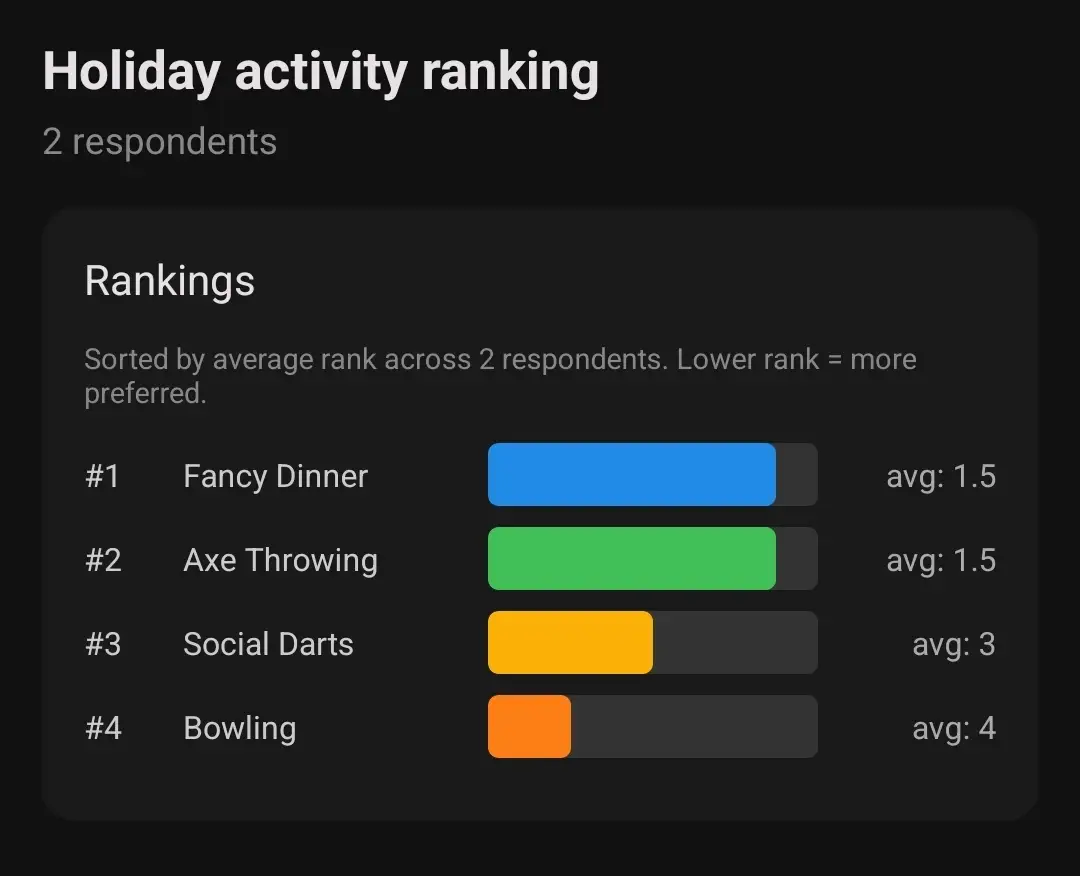
Ranking — Shows the overall preferred order based on everyone’s input.
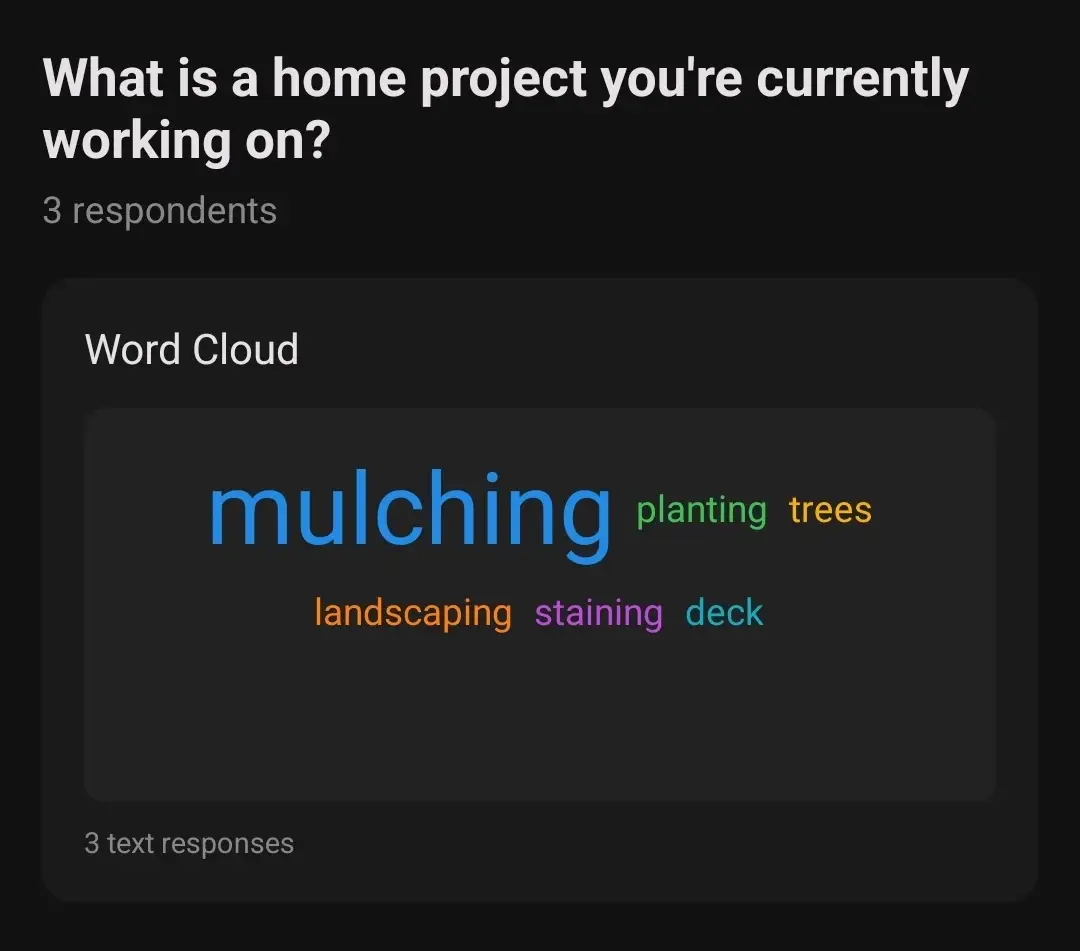
Short Text / Long Text — Word cloud and a list view to surface common suggestions and themes.
Viewing results in the Backstage portal
Event admins can view results from the Backstage portal:
- Navigate to your event’s Challenges page.
- Find the survey challenge and click View Results (next to the Download Submission Bundle button).
- This opens a results tab with the live visualization and an Export to PDF button at the top for sharing or archiving.
You can still download the raw submission data using Download Submission Bundle, just like any other challenge type.
Viewing results in the app
After submitting a survey (when results are set to visible), players can view results in two ways:
- From the challenge submission card, tap the options menu and select View Results.
- From the View Challenge page, tap the options menu and select View Results.
Both options open the Challenge Results page with the live visualizations.
Survey challenges are an easy tool to make your team event more interactive. Use quick polls to steer activities, collect ratings to evaluate sessions and facilitators, or gather written suggestions to improve future events.